Disclaimer: This post uses an affiliate link to SpiderOak. If you sign up to a free account using any link in this post, both of us will receive one additional gigabyte of free space. If you prefer not to use this link, go directly to spideroak.com.
Disclaimer 2: I accept no responsibility for lost or cluttered presets if you follow this procedure. It worked well for me but I do not charge you for my advice and you do not yell at me if they don’t work for you. Please post a comment if you encounter problems and I will try to update the guide.
Why should I?
If you own a license to Adobe Lightroom you are entitled to use it on two computers, for example your main workstation and your laptop, as long as the software is only used on one computer at a time (http://www.adobe.com/products/photoshoplightroom/faq/). This can be useful to e.g. process photos while traveling. Also note that these computers may use different operating systems, Windows or OS X, as is my case. Other web sites will teach you how to conveniently move photos and meta data back and forth between computers.
However, if you have invested any time in making or acquiring Lightroom presets, you will probably miss some of those presets when not working on your main computer. This blog post explains an automated and free way to always have your presets synchronized between two or more computers. You set it up once and, hopefully, forget about it.
SpiderOak
So, my take on this is to use SpiderOak. This is a free program and service that allows you to automatically back up files on your computer to the cloud (SpiderOak’s servers) whenever they are edited. In this manner it is similar to e.g. Mozy or Carbonite. However, SpiderOak also offers a very flexible sync feature. After two folders from different computers have been backed up to the cloud, you can set up a sync relationship between them, meaning that the contents from each computer will be merged and any changes in the future will be mirrored. This is similar to yet much more feature rich (and less user friendly) than DropBox.
Also note that SpiderOak has very strong security compared to most cloud services, where your data will at no point be available to the company hosting it, not even if supenad etc. I say this being a computer engineer, having read carefully their documentation.
So, if you haven’t already, sign up to SpiderOak and set it up on your computers.
Where are my Lightroom presets stored?
Lightroom presets are individual files stored on disk. You can actually open a preset file in a text editor to get a pretty clear view of what it does. More on that in other corners on the web. To see where any preset is stored, right click it and select Show in Explorer (or Show in Finder on a Mac) and a file browser will open.
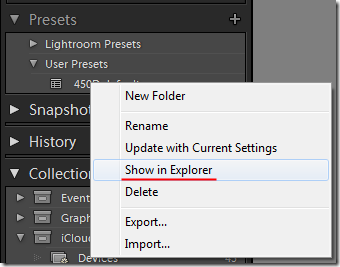
Go up two directories, and you will get to a directory looking like this:
- Windows: C:\Users\Magnus\AppData\Roaming\Adobe\Lightroom
- OS X: /Users/magnus/Library/Application Support/Adobe/Lightroom
(where Magnus will of course be your own username)
I will now explain how to synchronize those folders between two computers and, in effect, synchronize all your Lightroom presets.
Back up presets
Now, open the SpiderOak application and go to the Back up tab. Click the check box next to the directory shown in the last paragraph and click Save.

Note that if on Windows, you probably have to click the button Hide/Show Hidden Folders/Files.
When you have finished setting up the backup, go to the Status tab and wait for the initial backup to finish. This should usually just take a couple of minutes as you won’t have much data in there.
Now, repeat the process on your other computer.
Set up synchronization
Now, if you have managed to back up the preset folders from both computers, you are ready to configure synchronization. Go to the Sync tab in SpiderOak and click New. Give the sync relationship a suitable name such as lightroom-presets and click Next. In this window you are now prompted to select two already backed up folders that you want to synchronize. Please browse to the two folders as shown in the screenshot.
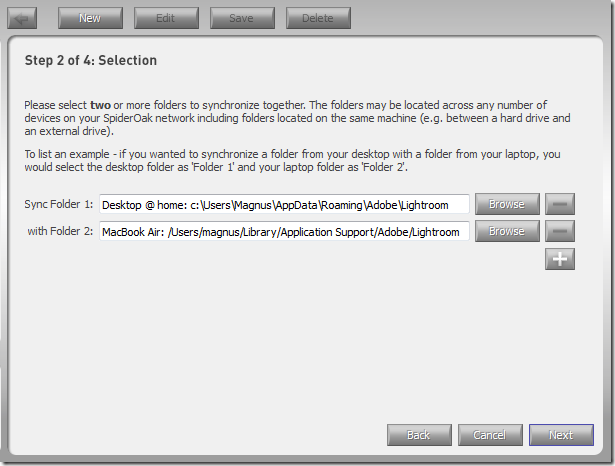
Note that this example shows a cross-platform setup. Now click Next in the next two screens, accepting the default choices and finally click Start Sync. Go to the tab Status and wait till the sync finishes.
Shortly the sync should also run on the other computer and, given that you have setup SpiderOak to automatically launch on OS startup (available under Preferences), your presets will now automatically be synchronized.
Using synchronized presets
This is the easy part. You should now, after restarting Lightroom, see a complete set of presets on both computers. If you edit, add or delete presets on any of the two, the changes will be quickly replicated on the others.
Questions or comments?
If you have anything to add, please use the comment field below. Thank you for your attention.